Getting started#
Power-on#
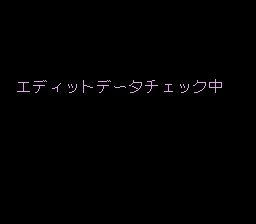
Switched on, Sound Novel Tsukuru first looks for a memory pack in its slot (メモリーパック確認, "checking the memory pack"). Then comes the ASCII logo, a mosaic, and then a short line, Checking the edit data エディットデータチェック中: the cartridge checks the novel in its memory before anything else.

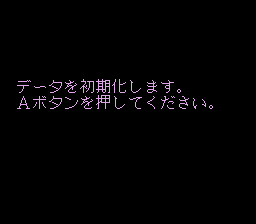
If the check passes, the title follows. If it fails, the screen says The data will be initialised. Press the A button. データを初期化します。 Aボタンを押してください。
The title#
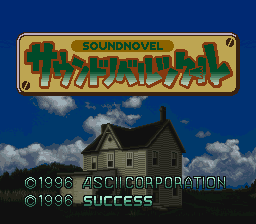
The title shows the program's name, a house under a blue sky, and © 1996 ASCII CORPORATION and © 1996 SUCCESS. Press A to go on to the main menu; START doesn't. Left alone, the title runs a staff roll over the same picture (Behind the scenes).
The main menu#
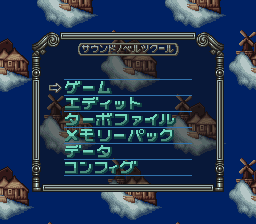
The main menu has six entries, over a wallpaper of houses drifting on clouds. Move with ↑ ↓ and choose with A.
 12345678
- 1 Title サウンドノベルツクール the program's name
- 2 Cursor ↑ ↓ to move, A to choose
- 3 Game ゲーム play the novel on the cartridge, or the sample
- 4 Edit エディット the editor
- 5 Turbo File ターボファイル save, load or delete a novel on a Turbo File Twin
- 6 Memory Pack メモリーパック the same on a Satellaview memory pack
- 7 Data データ Initialise Edit Data, Sample Load, Memory Pack Sound
- 8 Config コンフィグ stereo or mono, and the cursor speed
| Entry | What it does |
|---|---|
| Game ゲーム | Plays a novel: User Game, the one on the cartridge, or Sample Game, the two parts of the sample in the ROM (below) |
| Edit エディット | Opens the editor on the cartridge's novel (The editor) |
| Turbo File ターボファイル | Saves the novel to a Turbo File Twin, loads one back, or deletes one: three slots (Saving and sharing) |
| Memory Pack メモリーパック | The same with a Satellaview memory pack in the cartridge's slot: eight slots (Saving and sharing) |
| Data データ | Initialise Edit Data, Sample Load (a part of the sample into the editor) and Memory Pack Sound (songs from Kanadeeru) (below) |
| Config コンフィグ | Stereo or mono, and the cursor's speed (below) |
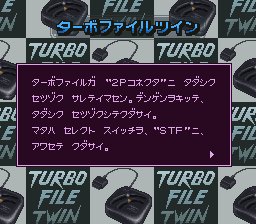
With no Turbo File Twin on the second controller port, Turbo File says that the Turbo File isn't properly connected to the 2P connector: switch off and connect it, or set its switch to STF.
The buttons#
Sound Novel Tsukuru is worked with the pad alone. A confirms and B goes back, as is usual in Japanese games.
| Where | Button | Does |
|---|---|---|
| Every menu | ↑ ↓ ← → | Move the cursor |
| A | Choose, confirm | |
| B | Go back | |
| The title | A | On to the main menu (START does nothing here) |
| Reading a novel | A | Turn the page at a ♡ |
| ↑ ↓ and A | Pick an answer at a choice | |
| The editor | X | Move the cursor up to the tabs |
| R | The menu of the list or page you are on | |
| L | The System menu: settings, and leaving the editor | |
| START | On a step: its details. On the name grid: done | |
| SELECT | On the name grid: overwrite or insert | |
| A test from the editor | X | The test menu |
A novel has no menu while it plays. The reader can turn pages and pick choices, nothing else: no skipping, no going back, no quitting. A novel ends when it reaches its end, or when the console is reset. By the code, a reset skips the logo and the checks of power-on.
Reading the sample#
The ROM holds a finished novel to read first: 寺田憲史's Natsu no Ki ni Sumu Nymph (夏の樹に棲む妖精, "the nymph who lives in the summer tree"), in two parts.
- Choose Game ゲーム. It offers User Game ユーザーゲーム, the novel on the cartridge, and Sample Game サンプルゲーム.
- Choose Sample Game, then part one ゼンペン or part two コウヘン.
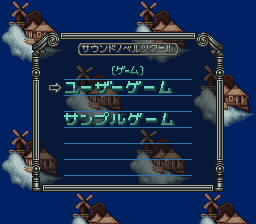
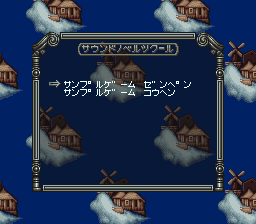
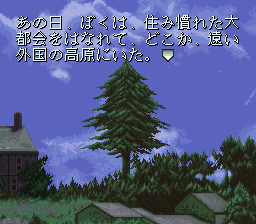
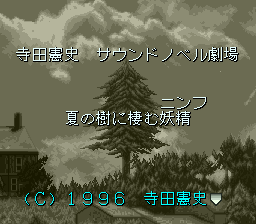
Part one opens on a full-screen picture of a great tree. Its first text types itself out a character at a time: あの日、ぼくは、住み慣れた大都会をはなれて、… ("That day I had left the big city I was used to …"). A ♡ at the end of a line means the novel is waiting for you: press A. Then a flash of colour, the picture again in sepia, and the title card.
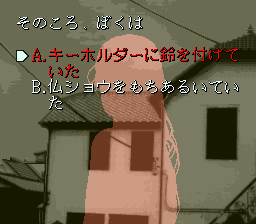
Now and then the novel stops on a choice: a question, then two or three answers labelled A. B. C. Move with ↑ ↓ and press A. The answer you picked is shown again on its own, with a ♡, and the story goes on down that branch.
Part two is the rest of the story, and opens on the same tree in sepia. The sample novel describes both parts and how they are built.
Continuing a reading#
Some places in a novel are save points. Reaching one, the cartridge quietly remembers where the reader is. Start that novel again later and it asks first: Start from the Beginning 最初から始める or Continue 続きから始める.
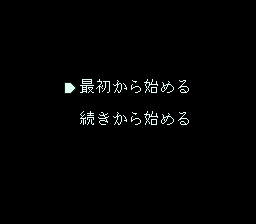
The cartridge keeps one reading, for all novels together. Reading the sample past a save point replaces a reading of your own novel, and the other way round. Playing and testing has the rules.
User Game#
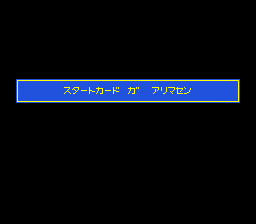
User Game plays the novel on the cartridge, the one the editor makes. On a cartridge with no novel it says There is no start card スタートカード ガ アリマセン and goes back. That is what the cartridge studied for this guide said: its save holds no novel.
Config#
Config コンフィグ has two settings. The cartridge keeps them in its memory.
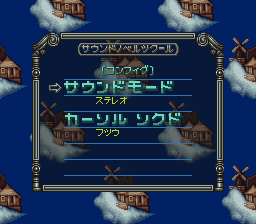
- Sound Mode サウンドモード: stereo ステレオ or mono モノラル.
- Cursor Speed カーソル ソクド: how fast the cursor moves in the menus, in five steps from fast ハヤイ through normal フツウ to slow オソイ.
Loading the sample into the editor#
The sample is the best model there is: every card, step and text of it can be opened in the editor. Data データ → Sample Load サンプルロード copies one part of it into the cartridge, where the editor can open it.
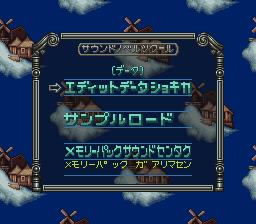
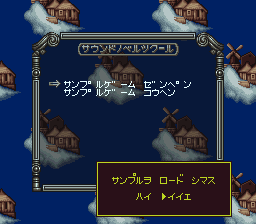
- Choose Data, then Sample Load, then part one or part two.
- The cartridge asks whether to load the sample (サンプルヲ ロード シマス), with the cursor on No イイエ. Move up to Yes ハイ and press A.
- Choose Edit エディット from the main menu. The card list shows the sample's cards: part one has 46.
The third entry, Memory Pack Sound メモリーパックサウンドセンタク, chooses songs from a memory pack written by Kanadeeru. It shows not used ツカイマセン while none is chosen (Music and sound). The first entry, Initialise Edit Data エディットデータショキカ, is for clearing the novel on the cartridge, as its name says (Saving and sharing).
A first novel, step by step#
A short novel you can make in a few minutes: a picture, a song, a line of text, and a choice with two endings. The reader stands before a great tree on the last day of summer and decides whether to climb it.
It takes three texts (the words), two cards (the scenes) and twelve steps. END is not a card you make: every novel has it, and a jump or a choice that leads to END ends the novel and returns to the main menu. The editor describes each screen on the way.
1. Start from an empty editor#
Choose Edit from the main menu. The editor opens on the card list. On an empty cartridge it is empty, and the status line under the tabs shows Free アキ:425, the room left for the novel.
If the list isn't empty, the cartridge already holds a novel: the sample, if you loaded it, or one of your own. Save it to a memory pack or a Turbo File Twin if you want to keep it, then empty the cartridge with Data → Initialise Edit Data before you begin.
2. Write the three texts#
The steps show texts by name, so write the texts first.
- Press X to move the cursor up to the tabs, move to Text テキスト, and press A. The text list opens, empty.
- Press R for the list's menu and choose Make サクセイ. A name grid opens: katakana, then digits and capital letters further down. Type T1 (move to each character and press A), press START to finish, and answer Yes ハイ.
- With the cursor on T1, press A to open the text editor. Pick each character from the keyboard sheet above the text (it scrolls a long way: hiragana, katakana, symbols, letters, then kanji by reading) and press A. ♡ and ↵ below are not characters but marks: Wait for a key and New line, chosen from the row of icons above the text, beside BS, DEL and INS.
- Go back to the text list, and make Q1 and T2 the same way.
| Name | What to type | Reads | Means |
|---|---|---|---|
| T1 | なつのおわり。♡↵おおきなきがある。♡ | Natsu no owari. / Ōkina ki ga aru. | The end of summer. / There is a great tree. |
| Q1 | どうする?↵のぼる↵かえる | Dō suru? / Noboru / Kaeru | What will you do? / Climb it / Go home |
| T2 | とおくのやまがみえた。♡↵おわり♡ | Tōku no yama ga mieta. / Owari | You can see the mountains far away. / The end |
Q1 is a choice text: its first line is the question, and each line after it one answer. In play the cartridge lays it out with the answers labelled A. and B., so don't type the letters yourself. A choice text has no ♡: the reader's choice is the wait.
3. Make the two cards#
- Go to the Card tab カード. Press R and choose Make サクセイ.
- Name the card OPEN on the name grid, press START, and answer Yes.
- Make a second card the same way, called TOP.
- Put the cursor on OPEN, press R, and choose Start Card スタートカード. Its type in the list becomes START: the novel will begin here.
A card can't be called END: that name belongs to the novel's end.
4. Fill card OPEN#
Put the cursor on OPEN and press A. The card's page opens: its steps in the middle (none yet), six icons above them, and your texts in a strip at the bottom.
To add a step, put the cursor on the step list and press A. The step menu ステップ メニュー opens with six groups: Sound, Graphics, Text, Branch, Item and Timer. Choose a group, then a command, then answer what its page asks. Commands with nothing to set just ask OK? OK?: answer Yes. A new step goes in above the line the cursor is on, so for each next step move the cursor down to the free line under the last one first.
Add these six steps, in this order:
| Step | Group → command | Then |
|---|---|---|
| 1 | Graphics → Set Graphic グラフィック セッテイ | Background ハイケイ, then タイボク (the great tree) from the list, colour A カラー:A |
| 2 | Graphics → Fade In フェードイン | Yes |
| 3 | Sound → Start BGM BGMスタート | オモイデ A from the list (song 13). Its tempo and fade-in can stay as they come (The steps) |
| 4 | Text → Show Text テキスト ヒョウジ | The cursor drops to the text strip: pick T1. Then its colour: white シロ |
| 5 | Text → Clear Text テキスト ショウキョ | Yes |
| 6 | Branch → Two-way Choice テキスト2分岐 | The text Q1; base colour white シロ; chosen colour red アカ; card A TOP; card B END; Yes |
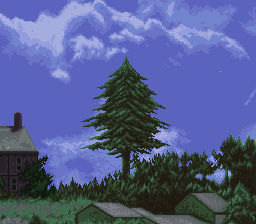
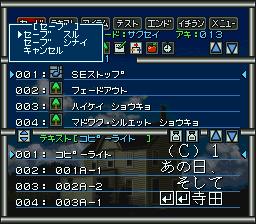
The choice step's page asks five things in turn: the choice text, the base colour キホンカラー of its lines, the chosen colour センタクカラー of the line under the reader's cursor, and a card for each answer: Card A カード:A and Card B カード:B, from a list of the novel's cards with END at the bottom.
5. Fill card TOP#
Go back to the card list (press B, or choose the List tab イチラン), open TOP, and add:
| Step | Group → command | Then |
|---|---|---|
| 1 | Text → Clear Text テキスト ショウキョ | Yes |
| 2 | Graphics → Fade Out フェードアウト | Yes |
| 3 | Graphics → Set Graphic グラフィック セッテイ | Background, then ヤマ (the mountains), colour A |
| 4 | Graphics → Fade In フェードイン | Yes |
| 5 | Text → Show Text テキスト ヒョウジ | T2, white |
| 6 | Branch → Jump ジャンプ | END from the list of cards |
The fade out and fade in hide the change of picture. The jump at the end matters: it is what ends the novel, back at the main menu.
6. Test it#
- Choose the Test tab テスト. It offers From the Start Card スタートカード カラ and From the Chosen Card シテイカード カラ. The cursor starts on the second, so press ↑ first, then A.
- The novel plays: the tree fades in, the song starts, T1 types out. Press A at each ♡. At the choice, pick A, and see the mountains.
- Test again and pick B: the novel ends at once.
During a test, X opens the test menu, with End Test テスト シュウリョウ to stop early. A test never touches the saved reading, and plays the editor's copy, so you can test before saving (Playing and testing).
If the test stops on a message instead, a step names something missing: a text or card that isn't there, say. Limits, bugs and messages translates every message.
7. Save and play it#
The editor works on a copy. Unless autosave is on, nothing you have done is on the cartridge yet. To save it:
- Press L for the System menu システム and choose End Editing エディット シュウリョウ, the last entry.
- Choose Save セーブ スル. (Don't save セーブ シナイ throws the changes away; Cancel キャンセル stays in the editor.)
- Back at the main menu, choose Game → User Game. Your novel plays from card OPEN.
Where to go from here. Give ending B a card of its own, with a picture and a last text, as TOP has. Add a sound effect, a silhouette over the tree, or a save point before the choice. Or add an item so that the choice is remembered later in the novel: Branches and items shows how, and The steps lists all 30 commands.
Saving your novel#
The editor saves in only two ways:
- End Editing → Save, as above. Do this before you switch off.
- Autosave オートセーブ モード, in the System menu, saves as you go when it is set to on (The editor).
Switch off or reset in the editor without saving and every change since the last save is gone. The cartridge holds one novel. To keep more, or to give one to a friend, copy it to a memory pack (eight novels) or a Turbo File Twin (three) from the main menu (Saving and sharing).
Keeping the save safe#
The novel, the one saved reading and the settings all live in the cartridge's 64 KB of battery-backed memory. The novel's part carries two checksums. At every power-on the cartridge checks them, and if either is wrong it offers to erase the whole memory, and waits for A. Switching off at that prompt leaves the memory as it was. Pressing A erases it.
Normal use doesn't set the check off: each save writes the checksums again. What can:
- switching off or resetting while the cartridge is writing (saving from the editor, or loading from a memory pack or Turbo File);
- a failing battery or dirty contacts, which let a byte change or be read wrong.
So:
- Don't touch the power while the cartridge is saving or loading.
- Copy the save of a second-hand cartridge before its first power-on, with a cartridge reader. If the copy fails the check, clean the contacts and read it again; trust it once two reads agree.
- If the prompt appears on a cartridge whose novel matters, switch off, and copy the save before trying again.
- Keep a backup of your novel on a memory pack or a Turbo File Twin, or as a save file in an emulator.
The saved reading sits outside the checksums, so a save point never upsets the check. A reading doesn't travel either: a novel copied to a memory pack or Turbo File arrives without it (Playing and testing).
Fan-made reference material, one of the Eschaton Games Tsukuru guides. Not affiliated with the publishers of the titles it covers. Corrections and questions: contact@eschaton.games.