The editor#
Edit エディット on the main menu opens the editor on the novel in the cartridge. The whole novel is made here: its cards and their steps, its texts, its items, and the tests. This page goes through the screens and the buttons. The steps, Texts, Branches and items and Playing and testing go into each part.
The editor works on a copy of the novel. What you change is written to the cartridge only when you leave the editor and choose to save, or as you go if autosave is on (below).
The screen#
The editor opens on the card list. With sample part one loaded, it looks like this:
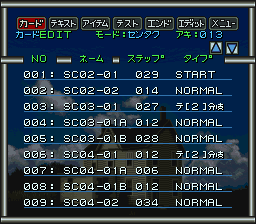 12345678910
- 1 Tabs カード テキスト アイテム テスト エンド エディット X moves the cursor here; ← → and A pick one
- 2 Menu メニュー lights while the R menu is open
- 3 Page カードEDIT the page you are on
- 4 Mode モード:センタク Choose on a list, Make on a card's page
- 5 Free アキ blocks of 128 bytes left for the novel
- 6 Scroll arrows more cards above or below
- 7 Number NO the card's place in the list
- 8 Name ネーム up to eight characters
- 9 Steps ステップ how many steps the card holds
- 10 Type タイプ START, NORMAL, or the kind of branch the card ends in
Across the top are seven tabs. Under them, the status line says where you are, what the cursor is doing and how much room is left:
- the page's name: CardEDIT カードEDIT, TextEDIT テキストEDIT and so on;
- Mode モード: Choose センタク on a list, Make サクセイ on a card's page or in the text editor;
- Free アキ: the room left on the cartridge, in blocks of 128 bytes. An empty novel has 425; sample part one leaves 13.
Every card and every text takes whole blocks, at least one each, and a long text several. So the free count goes down by one with each new short card or text, and the number of cards and texts together can never pass 425 (Limits).
| Tab | Opens |
|---|---|
| Card カード | The card list |
| Text テキスト | The text list, and from it the text editor |
| Item アイテム | The item list |
| Test テスト | A test of the novel, from the start card or from a chosen card (below) |
| End エンド | Back to the main menu (below) |
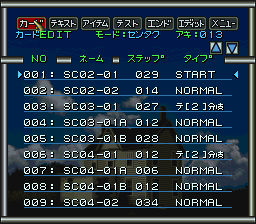
| Edit エディット / List イチラン | On the lists it reads Edit. On a card's page and in the text editor it reads List: the way back to the list |
| Menu メニュー | The menu of the page you are on, as R opens it (below) |
The buttons#
| Button | Does |
|---|---|
| A | Open the card, text or item under the cursor. On a card's page: add a step. In a menu: choose |
| B | Go back |
| X | Move the cursor up to the tabs; then ← → and A pick one |
| R | The menu of the page you are on (below) |
| L | The System menu (below) |
| START | On a step: its details. On the name grid: done |
| SELECT | On the name grid: Overwrite or Insert |
| Y | Nothing. In the text editor, X and SELECT do nothing either |
The menus take no notice of a very short tap. A normal press is fine; an emulator's macro may need to hold each button for a sixth of a second or so.
The System menu#
L, anywhere in the editor, opens the System menu システム: five settings for the editor itself, and the way out. The settings are kept in the cartridge's memory, apart from the novel, so they stay as they are when you load another novel.
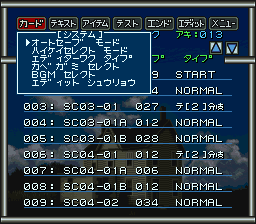
| Entry | Choices | What |
|---|---|---|
| Autosave オートセーブ モード | Off オフ, On オン | Save to the cartridge as you go (below) |
| Background Select ハイケイセレクト モード | By name ネーム センタク, by sight ビュー センタク | How a picture step offers the pictures: as a list of names, or as the pictures themselves |
| Editor Frame エディタ ワク タイプ | Types 1–3 タイプ | The frame drawn round the editor's screens |
| Wallpaper カベガミ セレクト | ベタ, ヨウカンA, ヨウカンB, ヨウカンC, バルコニー, イリグチ, ゲンカンA, ゲンカンB | The picture behind the editor: the first eight background pictures (ベタ is a plain colour, the others a mansion inside and out) |
| Editor Music BGM セレクト | ON, OFF | Music while you edit |
| End Editing エディット シュウリョウ | Leave the editor, saving or not (below) |
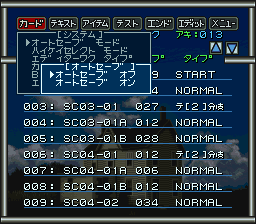
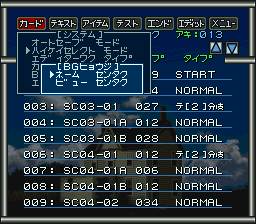
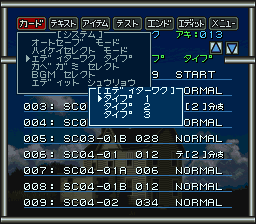
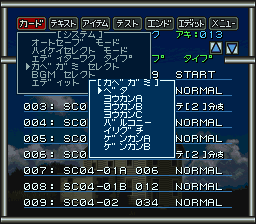
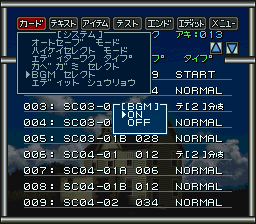
Background Select matters most. By name, a picture step offers a list of katakana names (ベタ, ヨウカンA …). By sight, you pick the picture while seeing it, which is easier when you don't read the names (The pictures lists all 91 with their names).
The card list#
The card list is the novel's table of contents. Each line is a card: its number, its name (up to eight characters), its number of steps, and its type.
The type is a label for you, which the editor fills in. START marks the start card, where the novel begins. NORMAL is a card with no branch. A card with a choice or an item branch is labelled with it: テ[2]分岐 for a two-way text choice, テ[3]分岐 for three-way, ア[1]分岐 for an item branch, and the start card shows its own label after S/. The editor sets the label when the step is added. The novel never reads it while it plays (Branches and items).
END is not in the list. Every novel has it, as the place where it ends: a jump or a choice that leads to END returns the reader to the main menu. You can't make a card called END.
The card menu#
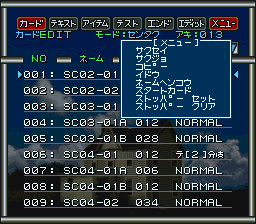
R on the card list opens its menu. Each entry works on the card under the cursor, but Make.
| Entry | Does |
|---|---|
| Make サクセイ | A new card, named on the name grid. It starts with no steps |
| Delete サクジョ | Deletes the card and its steps |
| Copy コピー | Copies the card |
| Move イドウ | Moves the card to another place in the list |
| Rename ネームヘンコウ | Gives the card a new name |
| Start Card スタートカード | Makes this the start card, where the novel begins: START in the list |
| Set Stopper ストッパー セット | Marks the card for tests: a test stops when it enters it (below) |
| Clear Stopper ストッパー クリア | Takes the mark off |
A card's page#
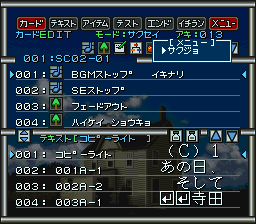
A on a card in the list opens its page: the card's steps, one per line, in the order they run.
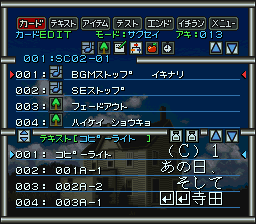 123456789
- 1 List イチラン back to the card list
- 2 Mode モード:サクセイ Make: you are working on a card
- 3 Step groups Sound, Graphics, Text, Branch, Item, Timer: the step menu's six groups
- 4 Card the card's number and name
- 5 Steps in the order they run, each with its group's icon; A adds a step above the cursor, R deletes, START shows the details
- 6 Setting イキナリ what the step was set to: here, stop the music at once
- 7 Text strip テキスト[ ] the name of the text under the strip's cursor
- 8 Texts the novel's texts by number and name: Show Text and the choices pick theirs here
- 9 Preview the start of the text under the strip's cursor
At the top, under the tabs, are six icons, one for each group of the step menu. Each step in the list carries the icon of its group, then the command and what it was set to: BGMストップ イキナリ is Stop BGM, at once. A jump shows the card it goes to (ジャンプ C3), an item step the item and its value. The list scrolls: a card can hold up to 512 steps, though the sample's longest has 90.
| Group | Commands | For |
|---|---|---|
| Sound サウンド | 4 | Starting and stopping the music and the sound effects |
| Graphics グラフィック | 8 | Pictures (a background, a window frame, a silhouette), fades, colour changes, background and staging effects |
| Text テキスト | 7 | Showing and clearing texts; the text window's area, position and speed; a new line; waiting for a key |
| Branch 分岐 | 6 | Two- and three-way choices, item branches, jumps, and the save point |
| Item アイテム | 4 | Setting an item, showing one, and choices that set items |
| Timer タイマー | 1 | Waiting a number of seconds |
At the bottom is the text strip: the novel's texts, by number and name, with the first characters of each beside it. Its heading names the text under its cursor. Show Text and the choice steps pick their text here: the cursor drops into the strip when they ask for one.
Adding a step#
A on the step list opens the step menu ステップ メニュー: the six groups, then the commands of the one you choose. Choosing a command opens its page, which asks for what the step needs: a song from a list, a picture, a text and a colour, a card. A command with nothing to set asks OK? OK?, Yes or No. After the last question the step is in the list.
The new step goes in above the line the cursor is on. To add steps at the end of a card, put the cursor on the free line under the last step first.
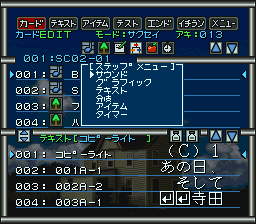
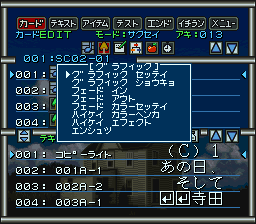
The steps goes through all 30 commands and each page they ask.
Deleting a step, and its details#
R on a step offers Delete サクジョ, and nothing else. To change a step, delete it and add it again.
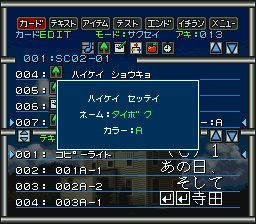
START on a step shows its details in a window: the settings it holds, some of which the list line has no room for. A Start BGM step, for example, shows its song, its tempo テンポ and whether it fades in.
Back to the list#
From a card's page, B or the List tab イチラン returns to the card list.
The text and item lists#
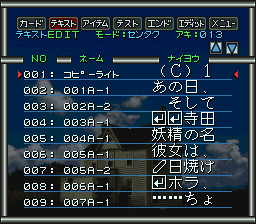
Text テキスト lists the novel's texts: number, name, and the start of each. A opens one in the text editor, with its keyboard sheet, its marks, and a count of the characters left ノコリモジ, the room this text still has: a text holds up to 1,792 characters and marks. Texts covers the text editor.
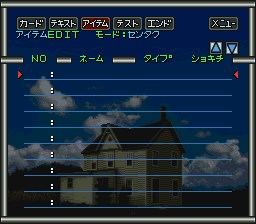
Item アイテム lists the novel's items, up to 30: name, type (a Yes/No flag, a Number or a Name), and the initial value ショキチ each has when a reading begins. Branches and items covers them.
The R menus#
R opens the menu of the page you are on. The Menu tab メニュー lights while it is open.
| Where | R opens |
|---|---|
| The card list | Make, Delete, Copy, Move, Rename, Start Card, Set Stopper, Clear Stopper (above) |
| A card's page, on a step | Delete サクジョ |
| The text list | Make, Delete, Copy, Move, Rename |
| The text editor | Cut カット, Copy コピー, Paste ペースト, Search ケンサク, Replace オキカエ, Clear All オールクリア (Texts) |
| The item list | Make, Delete, Copy, Move, Rename (Branches and items) |
Naming things#
Cards, texts and items are named on the name grid: up to eight characters, from the katakana (with a few voiced ones, the small kana and the voicing marks), the digits 0–9 and the capitals A–Z. The grid scrolls to show them all.
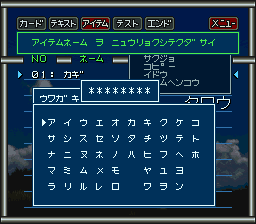
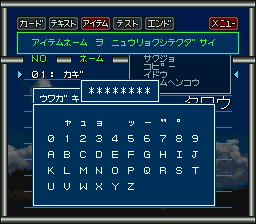
- Move to a character and press A to type it.
- SELECT switches between Overwrite ウワガキ and Insert ソウニュウ.
- START finishes. The editor asks Is this all right? ヨロシイデスカ?: Yes ハイ, No イイエ or Cancel キャンセル.
Two things of the same kind can't share a name: the editor refuses with The name is already in use ネーム ガ ジュウフク シテイマス. A card can't be called END (カードネーム ニ END ハ ツカエマセン).
Testing#
Test テスト plays the novel straight from the editor's copy, without saving and without touching the saved reading. From the card list it offers From the Start Card スタートカード カラ or From the Chosen Card シテイカード カラ, the card under the list's cursor. On a card's page the second reads From This Card コノ カード カラ. The menu's cursor starts on the second entry.
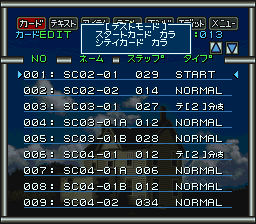
In a test, X opens the test menu: see and change each item's value, end the test, or go back to it. Playing and testing has the details.
The stopper#
Set Stopper ストッパー セット in the card menu marks one card, drawn in red in the list. A test that jumps or branches into it stops there with Test stopped テスト ストップ チュウ and the test menu, so you can look at the items before the card runs. Clear Stopper ストッパー クリア takes the mark off. There is one stopper at a time, and the editor clears it each time it opens (Playing and testing).
Autosave and leaving#
Autosave#
With Autosave オートセーブ モード on in the System menu, the editor writes your changes to the cartridge as you go, so a lost power costs little. With it off, nothing is written until you leave the editor.
Leaving the editor#
System → End Editing エディット シュウリョウ leaves the editor. It asks:
| Choice | Does |
|---|---|
| Save セーブ スル | Writes the novel to the cartridge and leaves |
| Don't save セーブ シナイ | Leaves, throwing away every change since the last save |
| Cancel キャンセル | Back to the editor |
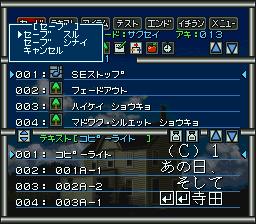
Save before you switch off. The editor's copy lives only in the console's working memory: switch off or reset without saving, and every change since the last save is gone.
The End tab エンド also leads back to the main menu. To be sure your work is kept, leave by End Editing, which asks.
Fan-made reference material, one of the Eschaton Games Tsukuru guides. Not affiliated with the publishers of the titles it covers. Corrections and questions: contact@eschaton.games.